It’s simple: a well-performing deep learning model = more than 1 training session for searching for good hyper-parameters of all sorts = big expenses.
So how do you train on a budget? Ideally, the first thing on your list should be optimizing the process to avoid wasted electricity.
new work: nvidia-co2 displays how much arctic sea ice your GPU is melting per hour 💻🧠🧊 https://t.co/hHbNGfeMag pic.twitter.com/x6ilGVLrin
However, in this tutorial I’d like to address the next step: that’s when you want to do the same run as usual, but cheaper.
Disclaimer: It is not an extensive tutorial on EC2 and I’m going to assume you are either at least familiar with AWS Console or have been using EC2 On-Demand instances already.
Let’s begin with a simple basic setup in which you have:
We’ll build from here and see the minimum modifications that have to be done to cut down the cost.
“A Spot Instance is an unused EC2 instance that is available for less than the On-Demand price. Because Spot Instances enable you to request unused EC2 instances at steep discounts, you can lower your Amazon EC2 costs significantly.” — AWS User Guide
The interaction with such instances is almost the same: you will see them all in the EC2 Console and will be able to connect as usual. Now you can even temporarily stop them whenever you need, which wasn’t possible until Jan 13, 2020.
To make sure that you can benefit from this great offering we have to prepare for one caveat: interruptions. Basically, whenever the demand is high and someone is willing to bid more for the resource, your instance will be interrupted. The frequency will depend on different factors such as a region, time of the day, instance type, etc. E.g. p3.8xlarge with 4 NVIDIA Tesla V100 GPUs might be harder to get on discount, while p2.xlarge with 1 NVIDIA K80 GPU should be taken rarer and will often be available again within minutes.
The good news is that there is a way to prepare for this situation such that whenever the demand drops, your training will resume on itself. That is what will be covered in this tutorial.
It is crucial to have weights, optimizer state, etc saved often and your code should support resuming training from the last checkpoint. It is generally essential for any training that takes a while, so most likely you have this feature already anyway.
To handle interruptions you’ll need a file that will be regularly rewritten, e.g. checkpoint_last. That’s the checkpoint that will be resumed whenever necessary.
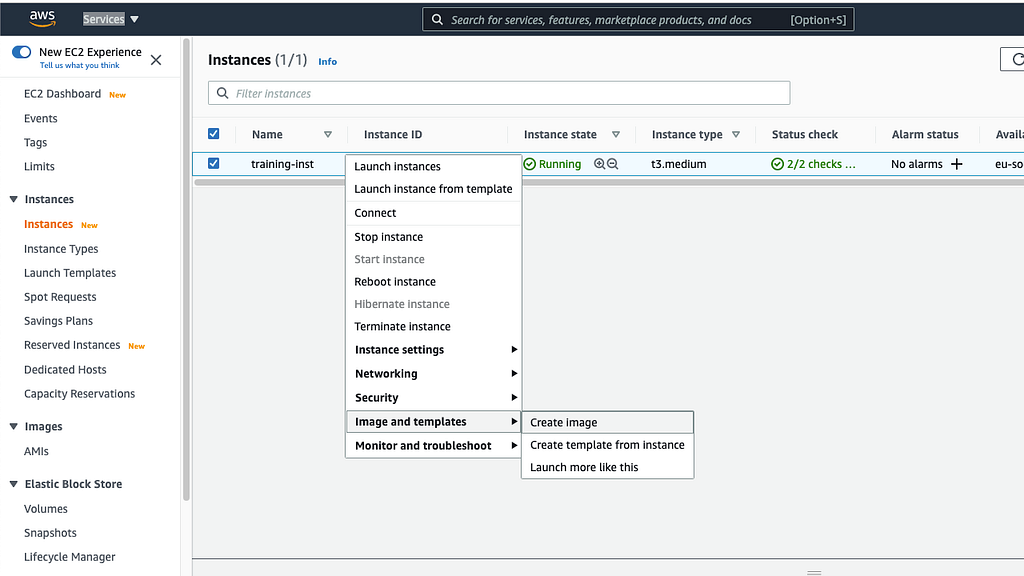
1 If you have an On-Demand instance running, unfortunately, you cannot turn it into a Spot one through settings straight away. Instead, get an image if you don’t have one yet.
2 Create a Spot request using this AMI. Do everything as usual but during “Step 3: Configure Instance Details” check the box for “Persistent request” and select “Stop” as Interruption behavior. This combination is the first major step to continuous training and it means that if your instance is needed by someone else it’ll be stopped and started again whenever the demand drops. Don’t hit “Launch” just yet.
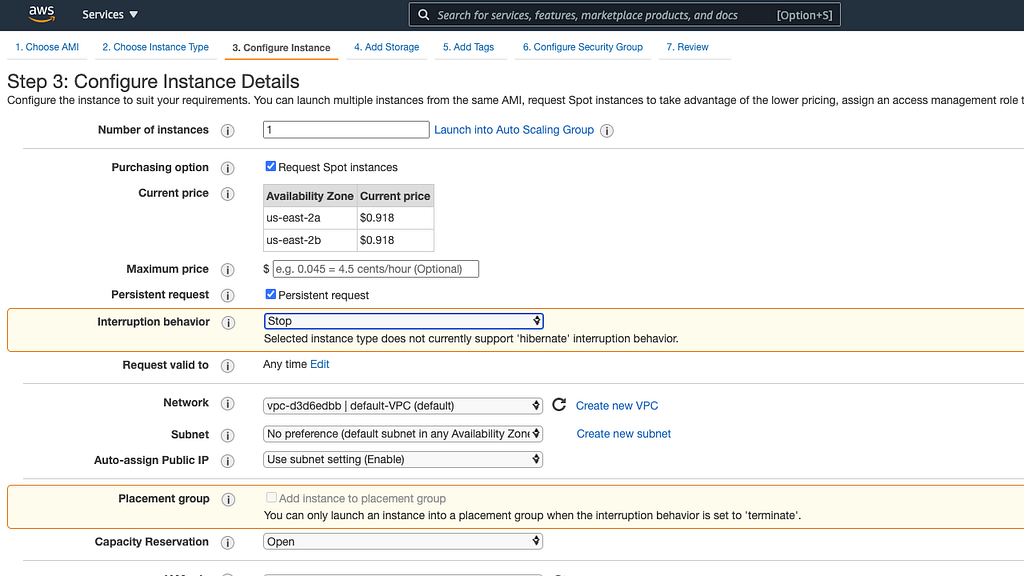
Important note: If you pick “Terminate” then after interruption a new instance will be recreated from a selected AMI. “Stop” however allows you to preserve all the new files on the root volume untouched in between interruptions, which is very convenient and even required if new weights are being saved on root and not on a separate volume.
3 Let’s ensure that when the instance is restarted the training command will be run immediately. For that, you can specify the sequence of commands that will resume training in User data also in “Step 3: Configure Instance Details”. The name isn’t very self-descriptive so you might be wondering what that is. By default, it is meant to run commands on your Linux instance at launch, which doesn’t apply to restart. That’s why we have to adjust it in the following way:
Content-Type: multipart/mixed; boundary="//"
MIME-Version: 1.0

--//
Content-Type: text/cloud-config; charset="us-ascii"
MIME-Version: 1.0
Content-Transfer-Encoding: 7bit
Content-Disposition: attachment; filename="cloud-config.txt"

#cloud-config
cloud_final_modules:
- [scripts-user, always]

--//
Content-Type: text/x-shellscript; charset="us-ascii"
MIME-Version: 1.0
Content-Transfer-Encoding: 7bit
Content-Disposition: attachment; filename="userdata.txt"

#!/bin/bash
/home/ec2-user/resume_training.sh
--//
Copied from here. Just paste it as is, we’ll create resume_training.sh soon. Replace ec2-user with your Linux user name though, you cannot use the $HOME variable here.
Keep in mind that User data can only be adjusted on instance creation and whenever it is stopped. It cannot be modified if it is in a running state. But that’s okay because the commands themselves will be enclosed in a bash script stored on the instance, so you’ll always have access to modifying it.
Proceed with the rest of the settings as usual and launch.
4 All the steps so far are within the basic interaction with the EC2 Console. Here comes the only adjustment you have to make: write a sequence of calls in $HOME/resume_training.sh that will resume training after your instance is restarted.
Important note: Environment variables like the ones set in .bashrc won’t be accessible at the point of execution of resume_training.sh, so if you need any exports for your training, add them here as well.
# create resume_training.sh in home directory
cd $HOME && touch resume_training.sh
# make it executable
chmod +x resume_training.sh
Then edit it in your favorite editor:
# mount all the volumes used during training, e.g.
sudo mount /dev/xvdf /data_volume
# export necessary variables
# export...
# create a variable that will point to
# the date and time of instance restart
d=$(date +%Y-%m-%d_%H:%M)
# do other preparations you need
# cd into your project and start training, e.g.
cd /path/to/your/project && nohup train.py --resume /path/to/checkpoint_last.pt &> '/path/to/log_'$d'.out' &
After each restart, a new training log will be created with a date indicating the moment when the instance started running again.
5 Obtain checkpoint_last. It can be a result of the training you did earlier. For a new training session either let it run for a bit or create a dummy file that won’t break anything.
Then simply start training as you usually do or run:
cd && ./resume_training.sh
Now you can finally go do something else while training runs by itself like it is supposed to. But cheaper.
If you are still not sure about the whole pipeline, take a look at this diagram:
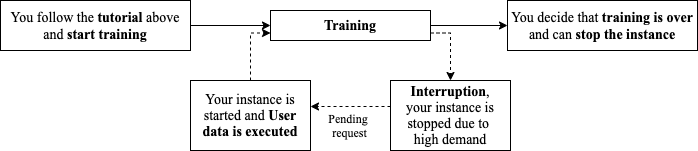
Bonus: You can receive an email notification on each interruption. To set it up follow this tutorial. It won’t influence anything in the loop above since everything takes care of itself. But if you do want to be informed about interruptions anyway, then go for it.
<hr><p>The quickest way to start training on Amazon EC2 Spot was originally published in AWS Tip on Medium, where people are continuing the conversation by highlighting and responding to this story.</p>